CAST

One workout. Every screen. One click.

Turn your existing workout videos, GIFs, and images into a pre-programmed class. Send it to multiple screens across your studio with one click—so your team can focus on members, not managing slides.
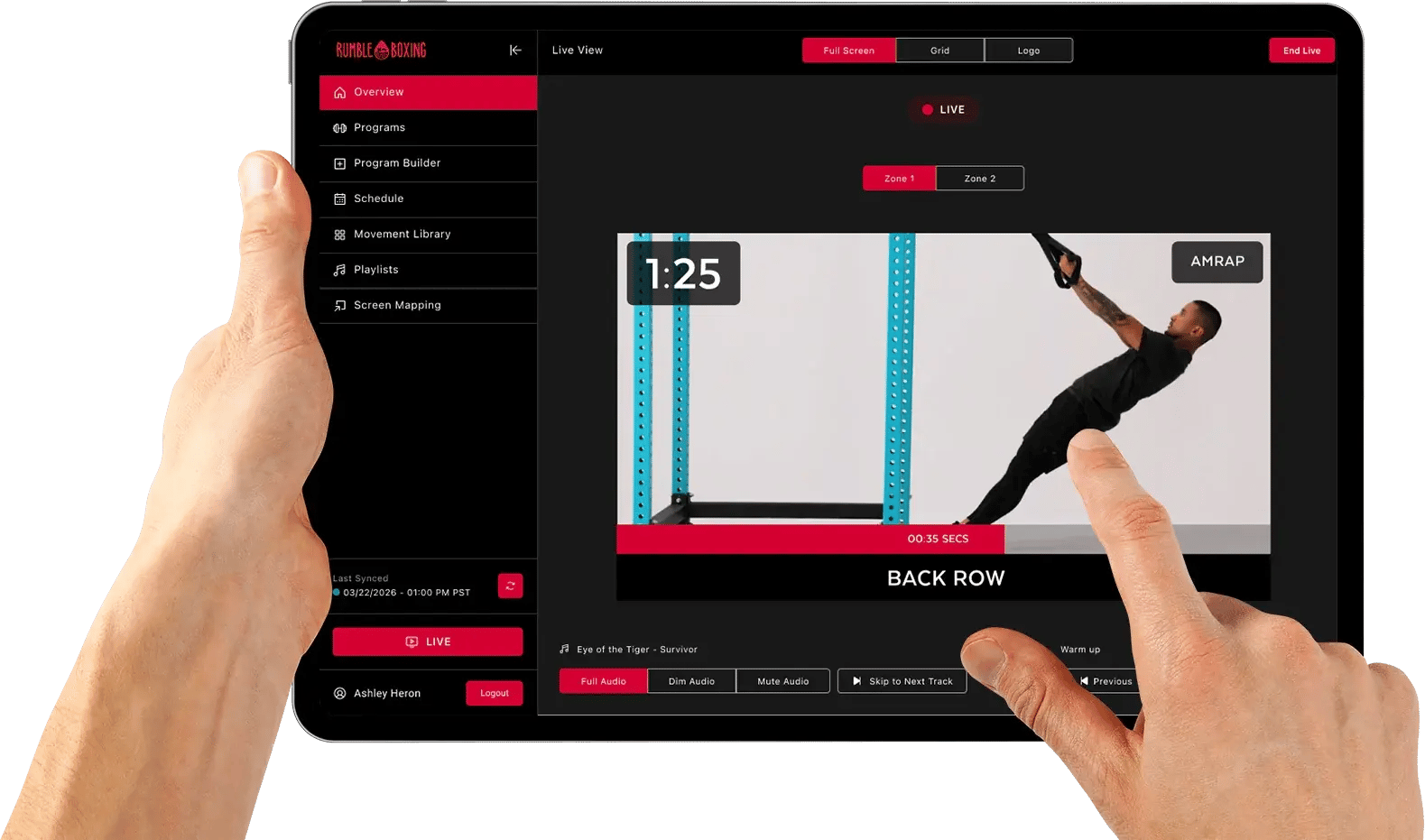
CAST workout interface on a tablet, showing a movement demonstration, interval timer, program tools, and live playback controls
From programming to the studio floor

Prepare once. Press play. Coach.

Build the experience before class, then bring it to the room without a deck of slides or a last-minute setup for every screen.

01

Start with the content you have

Add your pre-recorded workout videos, GIFs, and images to a reusable movement library. Arrange the exercises, sets, timers, and rest periods into a program.

02

Send it to your studio screens

Assign the prepared workout to a class and map connected displays to your zones. When the room is ready, an authorized team member starts the session with one click.

03

Put the focus back on members

Movement demonstrations and timing cues run on screen while your team coaches. Keep live controls close when you need to pause, switch blocks, or adjust the session.

Made for the studio floor

Your programming.
On every studio screen.

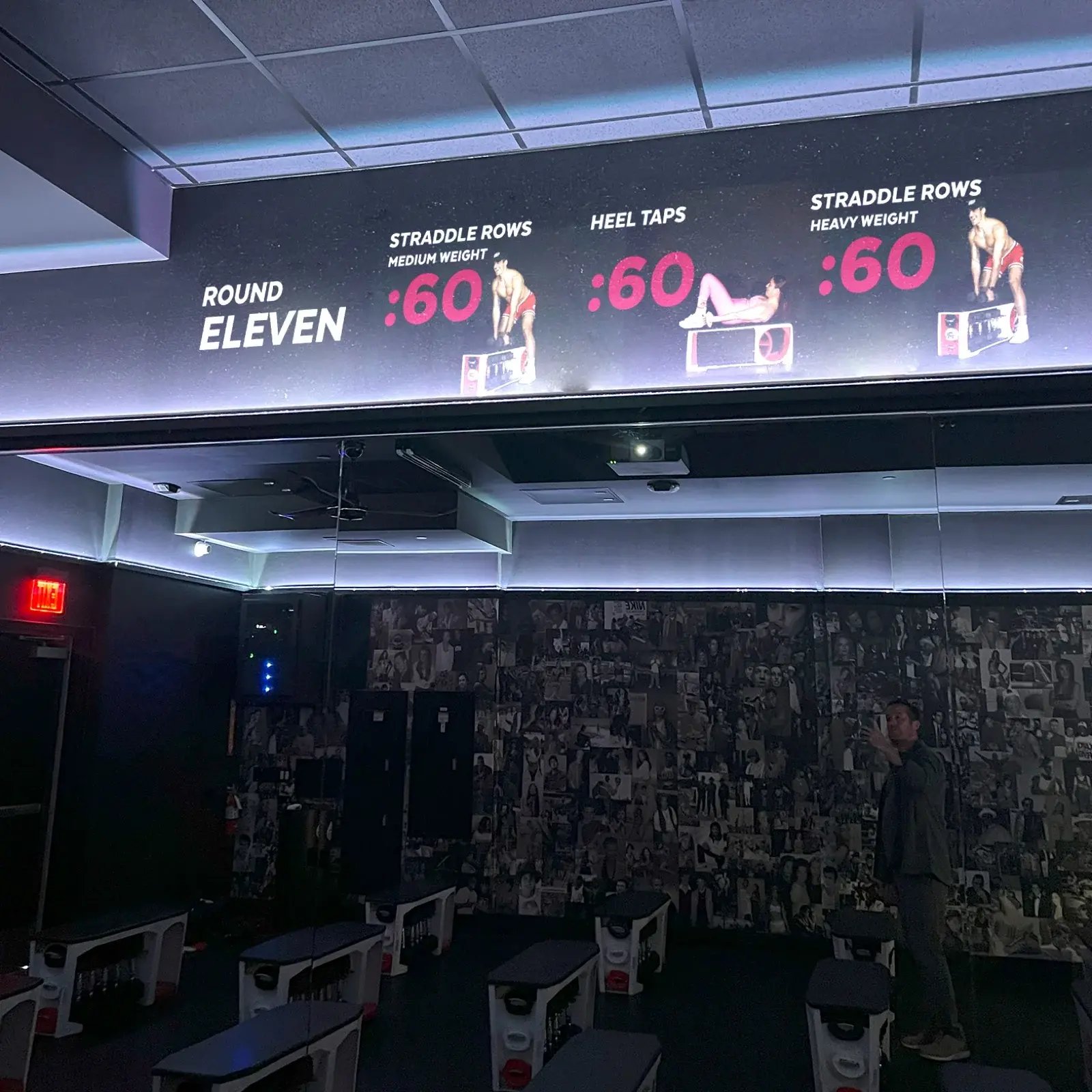
The workout is ready before your members arrive. CAST distributes your pre-programmed videos, GIFs, and images to connected screens across the studio, with movement demonstrations and timing cues built into the session.

No more slides. No screen-by-screen setup. Just more time to focus on members.
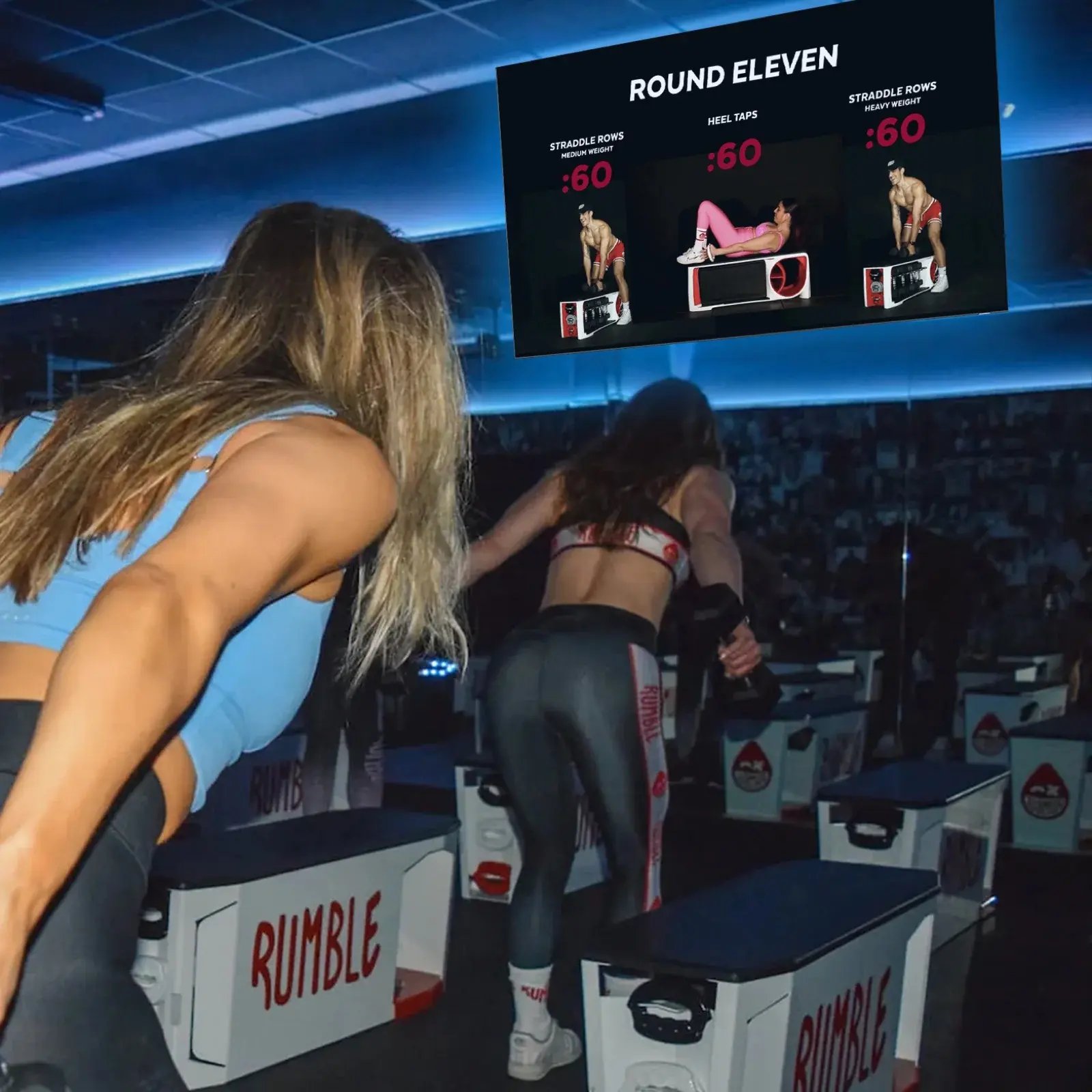
VideosGIFsImages

Once the workout is assigned and screens are connected, start the session with one click. Authorized teams can pause or adjust playback as the class unfolds.

See CAST for your studio
Watch the 30-second Live View demo

Two zones. One place to run the session.

This screen recording shows CAST’s Live View, with Zone 1 and Zone 2 controls, movement demonstrations, countdowns, and Full Screen, Grid, and Logo display options. Playback and music controls stay together in the app.

Inside CAST

The details behind a great class.

Keep the programming, content, and screen experience connected from the first movement to the final cooldown.

One program. Independent zones.

Map connected displays to one or two zones, each with its own movement sequence. Show different exercises across the room and control display modes by zone.

A movement library you can build

Upload movement videos, GIFs, images, and thumbnails, then organize them with searchable tags for equipment, body focus, difficulty, and more. Reuse them across programs.

Music that follows the workout

Create playlists from uploaded MP3s, assign music to blocks, and cue a specific track when a movement begins. Adjust audio without leaving Live View.

The right view for the moment

Use Full Screen for a single movement, Grid for previous, current, and next exercises, or Logo for introductions and breaks. Adapt layouts to your screen orientation.

Clear cues from start to finish

Set movement timers, rep labels, rest countdowns, countdown beeps, and end-of-block cues. Help participants see what to do and when to move on.

Prepare now. Sync when connected.

Program changes save locally and sync in the background when connected. Check media sync before class so the display apps receive the assets they need.

Add to your Stack

Bring your class vision to life.

Start with the experience you want to create. We’ll explore how CAST fits your programming workflow, team, and studio setup.

  • Your existing workout videos, GIFs, and images
  • Reusable programs, previews, and class assignments
  • Multiple screens, independent zones, and one-click playback
  • Timers, rest periods, music cues, and live controls
CAST

Let’s find your fit.

Tell us about your class format, locations, and screen setup. We’ll walk through CAST and confirm the right scope.

Explore CAST with us

Optional. Available separately from Studio Stack’s base plans.

Before you add it

The right tool.
The right fit.

Can we use our existing workout content?

Yes. Use your pre-recorded workout videos, GIFs, and images in reusable programs. Prepare the class in advance, assign the workout, and start it across connected studio screens with one click.

How does CAST connect to studio screens?

The Workout Builder app controls displays running the companion Cast Client App on the same network. Screen Mapping assigns those displays to one or two zones. We’ll confirm compatible devices and the right setup for your studio.

Which devices can my team use?

The Workout Builder runs on iPad, iPhone, Android, Windows, and macOS. A web version supports programming; live screen control uses the app experience.

Can instructors change programs or control screens?

Instructors have view-only access to schedules and assigned programs and can use preview mode. Admins and studio admins have the permissions to build, publish, schedule, and control live sessions.

How is music managed?

Upload MP3 tracks to create playlists, assign them to blocks, and optionally cue specific songs as movements begin. Current music workflows use uploaded files.

Is CAST included in a Studio Stack plan?

CAST is an optional, separately scoped product. We’ll review your programming and studio requirements and confirm pricing with you.

Make room for
your next good idea.

Choose the tools that fit the way your business works.

Explore CAST with usOptional tools. Separate subscriptions.